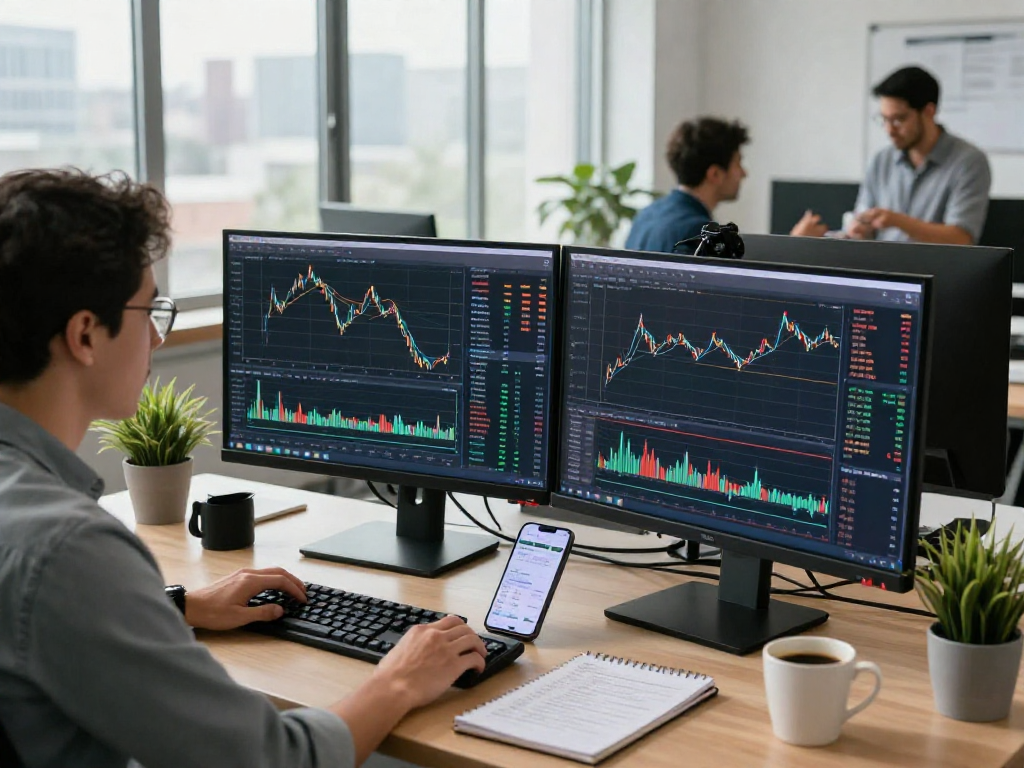
Understanding TradingView: Key Features Overview
In today's fast-paced trading environment, having the right tools for market analysis is crucial for both novice and experienced traders alike. TradingView is an innovative platform that provides comprehensive market data, professional-grade charts, alert systems, and the ability to operate across various devices. Whether you're analyzing stocks, Forex, cryptocurrencies, or commodities, TradingView equips you with the functionalities necessary for informed trading decisions. This article delves deep into the key features of TradingView, how to effectively utilize its chart analysis tools, set up alerts, maximize trading efficiency, and answer frequently asked questions about the platform.
What is TradingView?
TradingView is a cloud-based platform renowned for its sophisticated charting tools and real-time market data. It offers an extensive range of features aimed at traders of all experience levels, from beginners to professionals. By integrating social networking components, it allows traders to share ideas, scripts, and market analyses with one another in real-time. This unique combination of functionality and community interaction has made TradingView a favorite for many in the trading community.
Main Functionalities of TradingView
TradingView's functionalities are vast, encompassing everything needed for effective market analysis:
- Advanced Charting Tools: Users can create customized charts with various technical indicators, drawing tools, and multiple layouts.
- Alerts & Notifications: Set alerts for specific price movements or technical conditions to stay updated without having to constantly monitor the markets.
- Market Screening: Filter and find assets that meet specific criteria using the market screener tool, which can save time and enhance decision-making.
- Collaborative Features: Engage with other traders by sharing insights, scripts, and analysis, which can help improve trading strategies.
Benefits of Using TradingView for Market Analysis
TradingView stands out due to its user-friendly interface and extensive capabilities:
- Ease of Use: Even those new to trading can navigate the platform easily thanks to its intuitive design.
- Cross-Platform Functionality: Access TradingView from any device, be it smartphone, tablet, or desktop, enabling traders to stay connected on the go.
- Support for Multiple Markets: Analyze various asset classes including stocks, commodities, Forex, and cryptocurrencies all in one place.
- Regular Updates: The platform continuously evolves, introducing new features and updates based on user feedback.
Effective Chart Analysis with TradingView
Utilizing TradingView for chart analysis can greatly enhance your trading effectiveness. With its robust tools, you can analyze multiple assets simultaneously and draw insights from various technical indicators.
How to Use Technical Indicators on TradingView
Technical indicators are essential for traders looking to analyze price movements and trends. TradingView offers a variety of indicators such as moving averages, Bollinger Bands, and Relative Strength Index (RSI). To add an indicator to your chart:
- Open your chart and click on the "Indicators" button.
- Search for the desired indicator or browse through categories.
- Click on the indicator to apply it to your chart, where you can customize its settings to fit your trading strategy.
Creating Custom Charts and Layouts
Customizing your charts in TradingView allows you to focus on what matters most for your trading style. To create a custom layout:
- Choose the desired financial instrument and timeframe.
- Add indicators, drawing tools, and annotations as needed.
- Save your layout for quick access in future sessions, facilitating a smooth trading workflow.
Multi-timeframe Analysis: A Step-by-Step Guide
Multi-timeframe analysis is a powerful technique used to gain a broader perspective on market trends. By analyzing multiple timeframes, traders can identify potential entry and exit points more effectively. Here’s how you can perform this analysis:
- Select the primary timeframe for your analysis (e.g., 1-hour chart).
- Open additional charts in different timeframes (e.g., daily and weekly).
- Look for confluences between the signals across timeframes to make more informed trading decisions.
Setting Up Alerts in TradingView
One of TradingView's standout features is its sophisticated alert system, designed to keep traders informed about crucial market movements without constant monitoring.
Understanding Price Alerts: How They Work
Price alerts notify you when an asset reaches a specific price point. This feature is particularly valuable for traders who may not always be watching the markets. To set up a price alert:
- Right-click on the price scale of the chart where you want to place the alert.
- Select “Add Alert” and specify the conditions (e.g., greater than, less than).
- Choose how you want to be notified (via email, SMS, or within the app).
Creating Condition-Based Alerts for Improved Trading
Condition-based alerts empower traders to set notifications based on more complex criteria beyond just price movements. For example, you might combine multiple indicators. To do this:
- Open the alerts settings and select “Condition.”
- Choose the indicators or price levels that will trigger the alert.
- Set the notification preferences and save your alert.
Notifications Across Devices: Staying Updated
TradingView allows for seamless notifications across different devices. Ensure your mobile notifications are enabled in your settings to stay updated no matter where you are.
Maximizing Trading Efficiency Across Devices
Using TradingView across multiple devices can enhance trading efficiency, allowing for real-time updates and analysis.
Browser vs Desktop App: Which to Choose?
Both browser and desktop applications have their advantages. The browser version is accessible from any device, offering convenience for on-the-go traders. The desktop app, however, provides additional features like multi-monitor support, making it ideal for serious traders who require advanced setups.
How to Sync Your TradingView Settings Across Platforms
Syncing your settings across devices ensures a consistent trading experience. After logging into your account on any device, all your saved charts, layouts, and alerts will automatically sync, allowing you to pick up right where you left off.
Utilizing TradingView for Collaborating with Others
TradingView's collaborative features enable traders to share their ideas and strategies with others. You can publish your charts and analyses to the public stream or privately share them with specific users, fostering a community of learning and growth.
Frequently Asked Questions about TradingView
Here are some common queries that potential users may have about TradingView:
What are the differences between TradingView plans?
TradingView offers several subscription plans, from a free version to Pro, Pro+, and Premium tiers, each providing varying levels of access to features, indicators, and support based on user needs.
Can beginners use TradingView effectively?
Yes, TradingView is designed to be user-friendly, making it suitable for beginners. The platform provides tutorials and resources to help new users onboard smoothly.
Is TradingView suitable for all types of trading?
TradingView accommodates various trading styles, including day trading, swing trading, and long-term investing. Its tools and features can be adapted to fit any trading approach.
What strategies can I implement using TradingView?
With its extensive charting capabilities, traders can apply strategies based on technical analysis, trend following, or even fundamental analysis by integrating market data and financial news.
How do I troubleshoot common TradingView issues?
If you encounter issues, TradingView's support center provides detailed guides, FAQs, and troubleshooting tips. Engaging with the community can also provide insights and solutions to common challenges.